
Merge Geometry Manual
Overview
This widget merges geometries and edits feature attribute properties within ArcGIS Experience Builder.
Getting Started
Installation
Select the widget in the Experience Builder canvas to open the configuration panel on the right.
Configuration
The configuration panel has three sections:
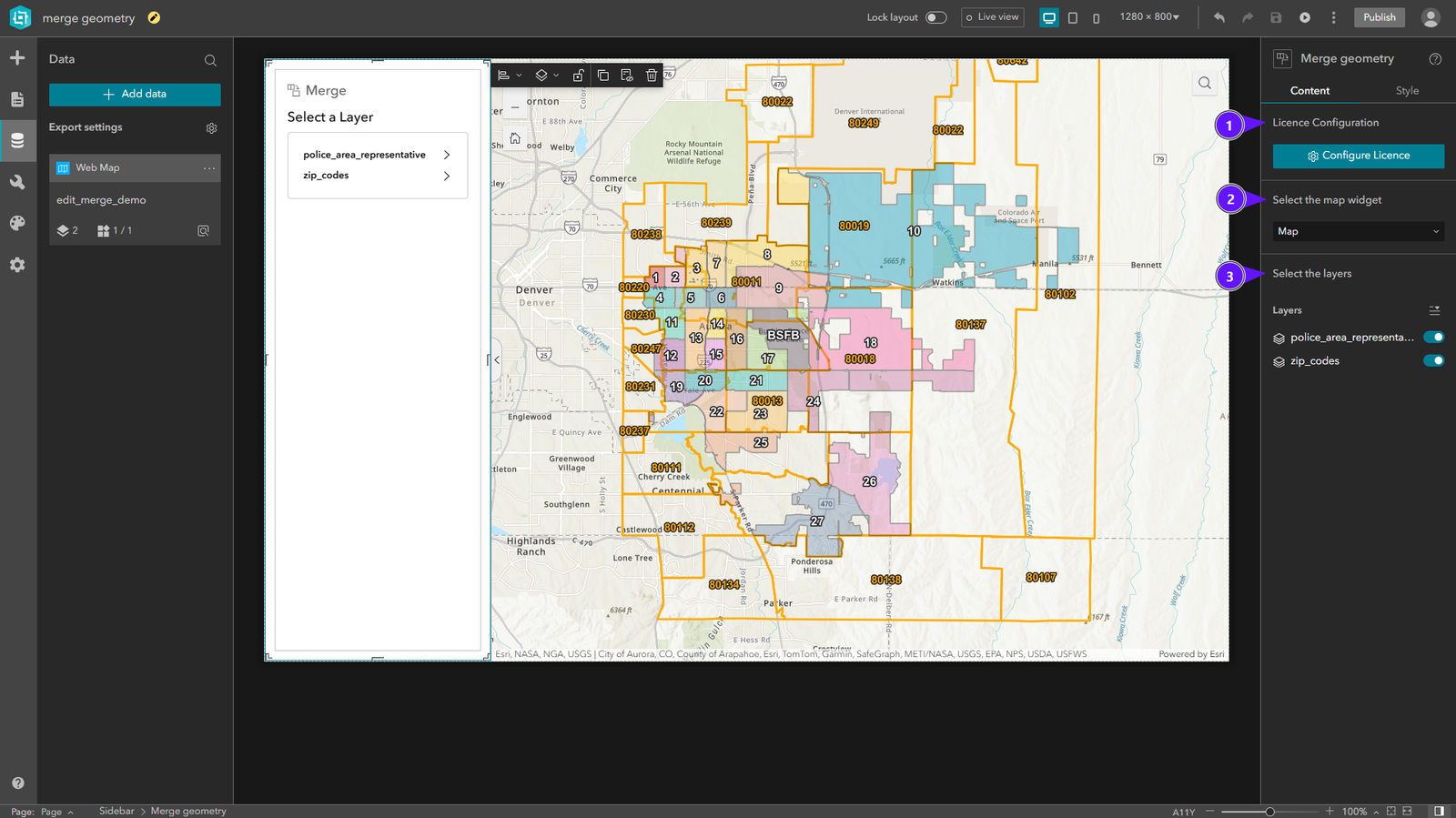
- License Configuration
- Map settings
- Layers settings
License Configuration
To activate the widget license:

- In the right panel, click Configure Licence.
- Enter your license key in the input field.
- Click Validate.
Once validated, the widget is fully functional.
Select Map Widget

In Select Map Widget, open the dropdown (1) and choose the map (2) to use with this widget.
Select Layers


In Select Layers, the layer list (1) lists layers available in the published app. Enable or disable layers (3) for merge operations. Use the quick-select tool (3) to select layers faster.
Usage
Layer Selection Screen
The first screen shows the layer selection. Only layers configured in the Configuration section are listed.

Operations Screen
After selecting a layer, the operations screen shows:
- Selection tools (1)
- Operation type (2)
- Selected features list (3)
- Attribute edit form (4)

Selection Tools
Three selection tools are available:

| Tool | Description |
|---|---|
| (1) | Point |
| (2) | Rectangle |
| (3) | Polygon |
- Hold Shift to add features to the selection.
- Hold Ctrl to remove features from the selection.
- The red button clears all selected features. {.is-info}
Operation Type

| Operation | Description |
|---|---|
| Existing Feature | Merges selected features and appends the result to a previously selected feature. |
| New Feature | Creates a new feature from the merged geometry. |
Selected Features

This section lists features selected with the selection tools. You can:
- Remove individual features.
- For Existing Feature, choose the target feature that will receive the merged geometry and updated attributes.