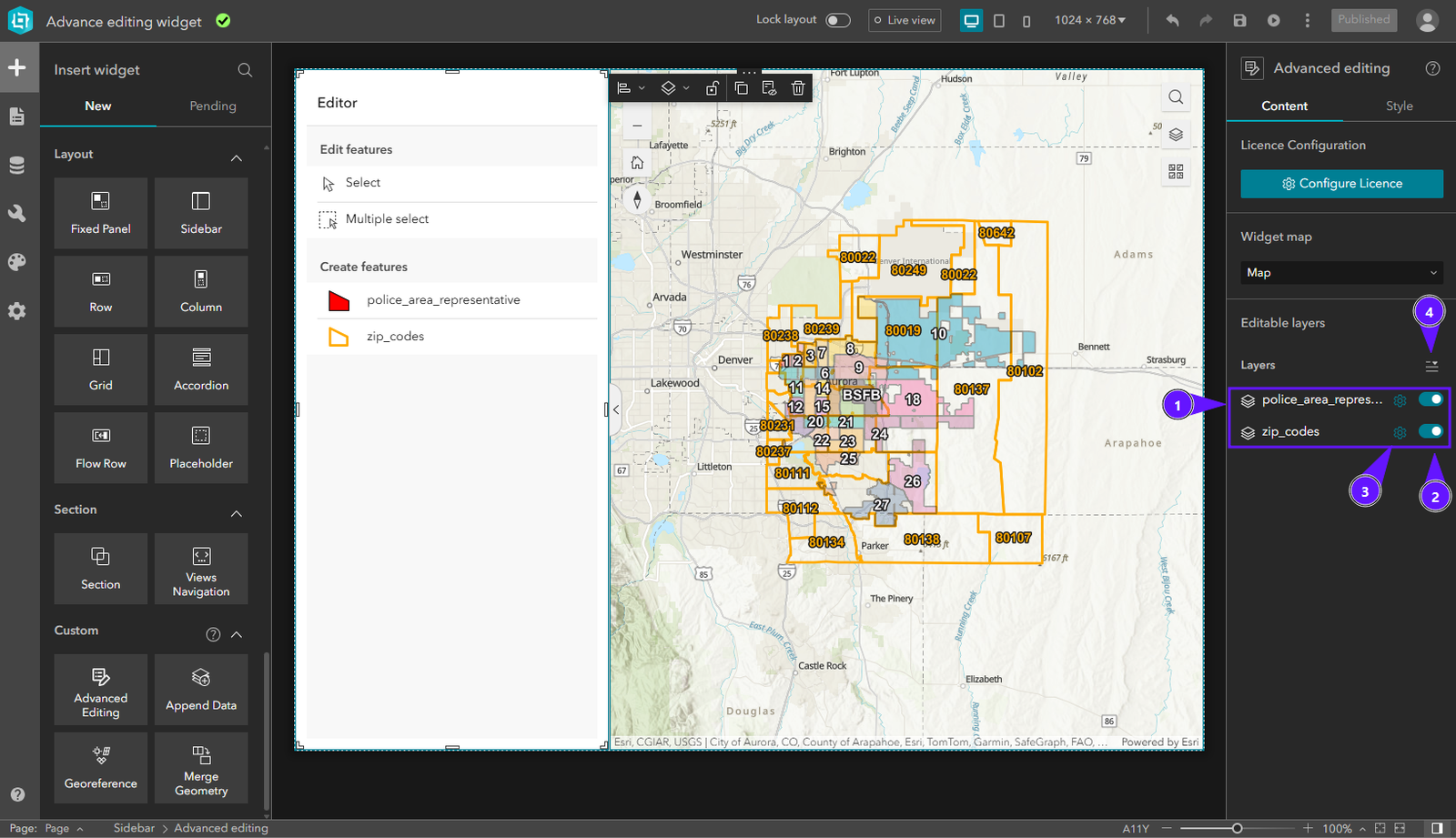
Manual
Advanced Editing Widget
Overview
Getting Started
Installation
To install an Experience Builder widget, follow the instructions at: Arcgis: Add custom widget
Configuration
The configuration panel has three sections:
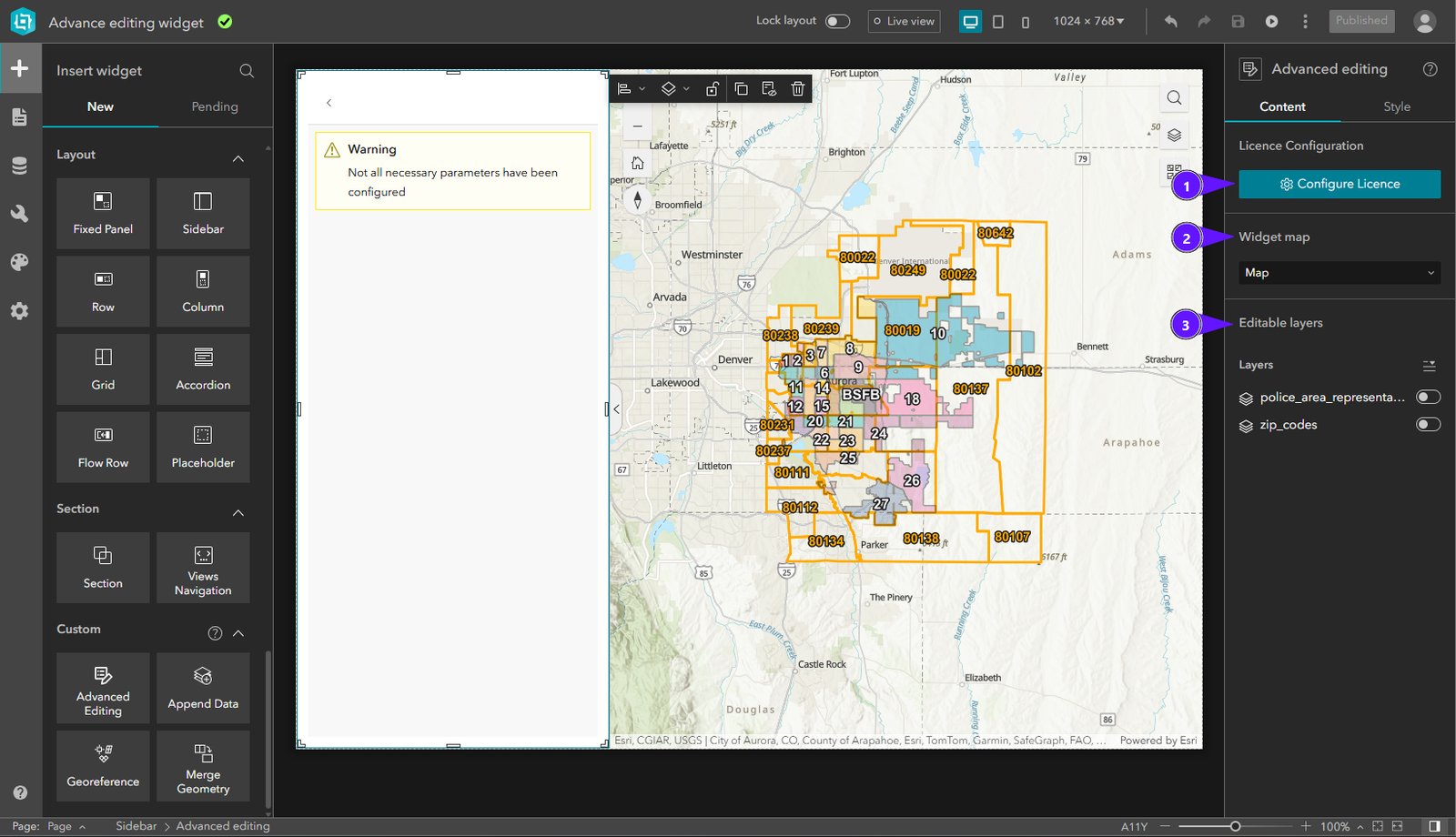
- License Configuration
- Map settings
- Layers settings
License Configuration
To activate the widget license:
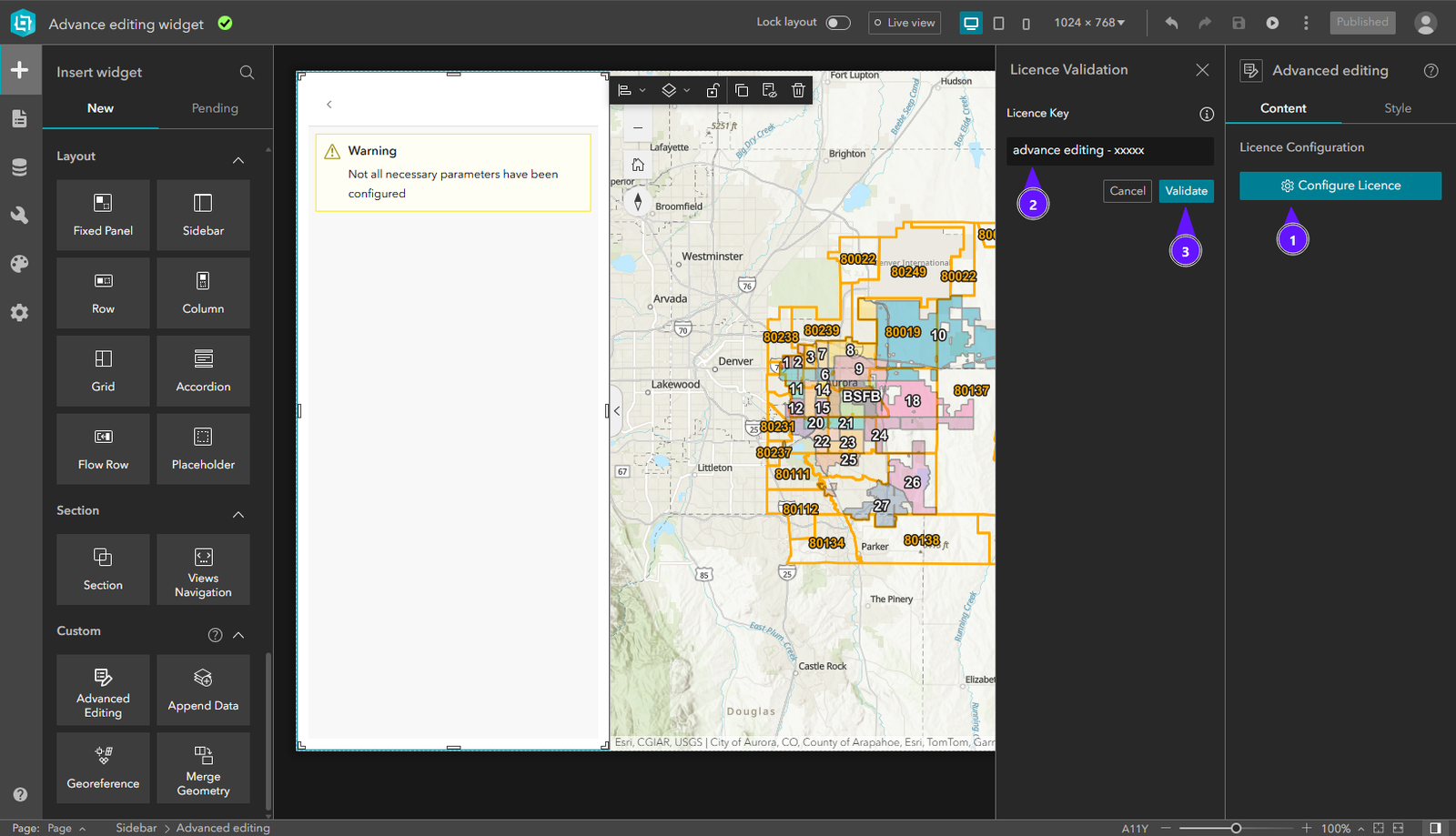
- In the right panel, click Configure Licence.
- Enter your license key in the input field.
- Click Validate.
Once validated, the widget is fully functional.
Select Map Widget
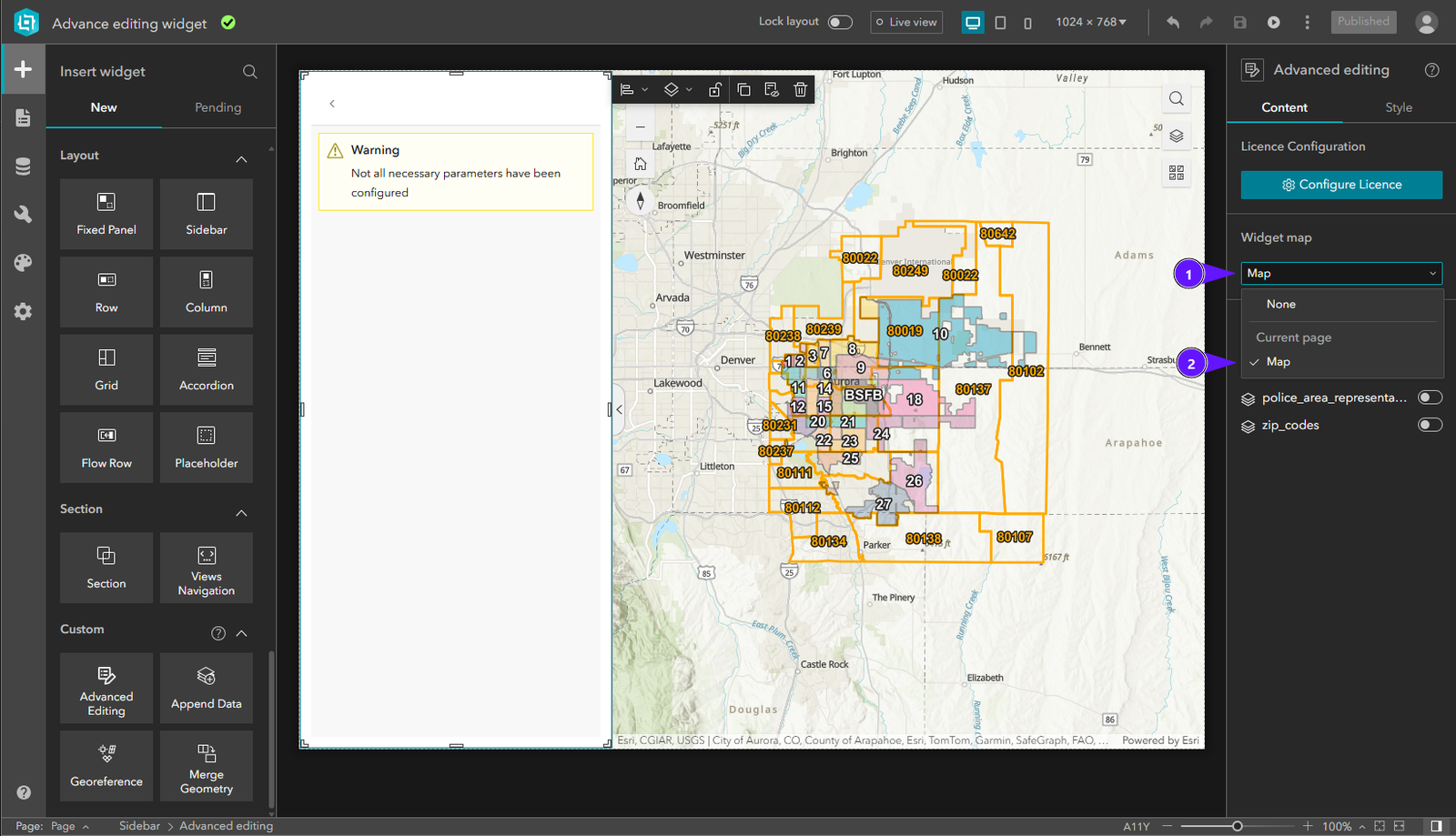
In Select Map Widget, open the dropdown (1) and choose the map (2) to use with this widget.
Select Layers